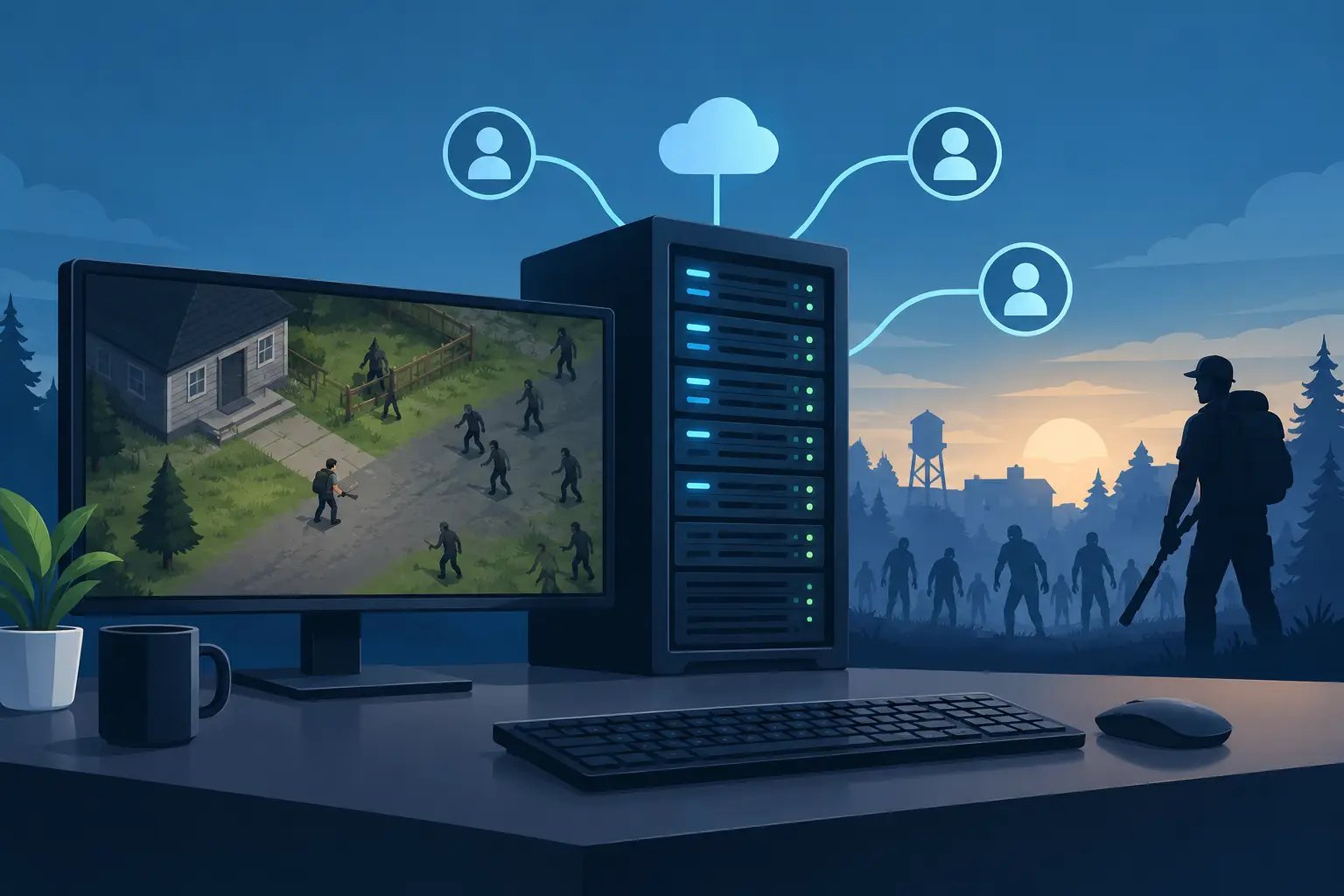
A Project Zomboid server is more than a lobby your friends join on Friday night. It is where your group's safehouse, vehicles, loot and hard-earned characters live. Knowing how to host a Project Zomboid server properly means building a world that stays online, loads quickly and does not vanish because the host's PC crashed or someone installed an incompatible mod.
For a small private group, self-hosting can work. For a persistent community or a heavily modded apocalypse, a dedicated server is usually the better answer. The right choice depends on how often people play, where they live and how much maintenance you want to do yourself.
Choose the right way to host
You have three realistic options: host directly from the game, run a dedicated server on your own computer or a rented VPS, or use managed game server hosting.
The in-game Host option is the fastest way to start. One player creates the world, invites friends, and their computer runs both the game and the server. It works for occasional sessions with a few friends. The limit is simple: the world is gone whenever that player logs off, restarts the PC or has a bad connection. Performance also drops when the host drives into unexplored land while other players fight a horde somewhere else.
A self-hosted dedicated server runs separately from the game client. It can stay online all day and gives you control over backups, mods and access. The trade-off: installation, port forwarding, updates, firewall rules and troubleshooting are all on you.
Managed hosting takes that workload away. It is the practical route for groups that want a persistent world without a home PC running 24/7. A good host gives you strong CPU performance for simulation-heavy moments, fast storage for saves and map data, DDoS protection, automatic backups and support when a mod update breaks the launch. We cover what to look for in detail in our guide to Project Zomboid server hosting.
What you need before you start
Server load in Project Zomboid is not just about player count. Zombie population, map exploration, vehicles, loot settings and mods all add work.
Memory is the first limit to plan for, and mods move it more than players do. As a starting point: 4 GB for 1–2 players without mods, 6 GB for up to 4 players, 8 GB for up to 8 players with around 20 mods. Groups of 12–24 players with 40–80 gameplay or map mods are comfortable on 10–16 GB, and public servers with large mod packs need 20 GB or more — and testing rather than guesswork.
RAM is not the whole story. Single-core CPU speed matters a lot when the server simulates zombies, pathfinding and several active areas at once. Extra memory will not save an overloaded processor.
Pick a server location close to most of your players. If your group is split between Europe and somewhere far away, someone will have higher ping — choose the region that serves the majority, or the players who do the most driving and fighting. For European groups a Frankfurt data center is a solid default. High ping rarely ruins Project Zomboid, but it makes driving, melee timing and inventory actions feel worse.
Set up a dedicated Project Zomboid server
If you want full control, SteamCMD is the standard way to install the dedicated server. Install SteamCMD, create a folder for the server files, log in anonymously and install Project Zomboid Dedicated Server with Steam app ID 380870.
On Windows, start the server with StartServer64.bat in the server folder; on Linux, use start-server.sh. Run it once before inviting anyone: the first launch creates the configuration files and asks you to set an administrator password.
Use a memorable server name, but never a weak admin password. The admin account can change settings, manage users and run commands, so treat it differently from an ordinary player password — especially if you plan to list the server publicly.
Open the required ports
A server can run perfectly and still look offline to friends if its ports are blocked. Project Zomboid uses two UDP ports: 16261 (DefaultPort) and 16262 (UDPPort). Both are set in the server's .ini file.
On a home server, forward both UDP ports from your router to the local IP of the server machine, then allow them in Windows Firewall or your Linux firewall. On a rented VPS, the provider's firewall may need the same rules. On game hosting you skip the router entirely and connect to the address shown in the panel.
Test from outside your home network. A friend on a different connection is the easiest check — do not assume it works just because you can join through your local IP.
Configure the world before the first real session
Server settings live in Zomboid/Server. The main .ini file (named after the server, for example servertest.ini) controls the server name, password, player limit, public listing, PvP and most multiplayer options. The matching servertest_SandboxVars.lua controls the apocalypse itself.
This is where you decide whether the server is tense survival or a long-running roleplay world: zombie speed and population, respawn, loot rarity, day length, water and power shutoff, vehicle condition and infection rules.
Make these decisions with your group before anyone settles into a base. Changing loot rarity or zombie respawn in an established world creates odd expectations. Turning respawn off feels fair for a small co-op group that wants to clear towns for good; on a public server it can leave big areas empty unless enough players move through the map.
Set a password even for a friends-only server. Publicly listed worlds attract random join attempts, and one uninvited player can do a lot of damage before an admin notices.
For every mod, the Workshop ID goes into WorkshopItems= in the server .ini, and the Mod ID goes into Mods=. The first tells Steam what to download, the second tells the game what to load — and they often differ. Map mods also go into Map=, before the base map. After every change, restart and read the console: a missing ID or dependency shows up there by name.
Add mods without breaking the save
Mods are one of the best reasons to run a dedicated server, and also the most common cause of failed launches and connection errors. A successful Workshop download is not proof that the mod loaded: missing dependencies, duplicate items, outdated scripts and wrong Mod IDs can still stop the server or keep players out.
Before adding a big collection to your main world, test it on a separate temporary server. Check that everyone can connect, create a character, use modded items and reach any new map areas. Map mods need extra care, because load order and spawn settings decide where new characters appear.
Avoid removing mods from an established save unless the author confirms it is safe. Modded vehicles, containers, recipes and map objects can stay in the world after the files are gone. The safest habit is a full backup of the save before every mod change.
Keep the server stable over time
The best setup is not the one with the longest mod list or the highest zombie count. It is the one your group can play on consistently.
Back up before updates and configuration changes, and keep several restore points, not just the latest one — corruption or a bad mod update is not always obvious right away. As we explain in whether daily backups are enough, one nightly copy is a baseline, not a strategy. Save the world data and the config files together so you can restore a working version without rebuilding settings from memory.
Restart on a schedule. For a private server, every day or two is usually enough; for a busy public world, scheduled restarts clear stuck processes and give you a predictable maintenance window. Warn players first so nobody gets caught in the middle of a dangerous run.
When performance drops, look at recent changes first: a new vehicle mod, a very high zombie population, piles of items on the ground or several players exploring separate towns. Fix things in stages instead of changing ten settings at once — that is how you find the real cause.
Common problems and quick fixes
If players cannot see the server, check the public listing setting, firewall rules, UDP port forwarding and whether the server has finished starting. If they see it but cannot connect, make sure the server version and mod list match their client.
If the server crashes after adding mods, remove the newest change and look for the first clear error in the console or logs. The last message is not always the cause — a dependency failure earlier in the log often triggers a chain of later errors.
If players lag while driving or near hordes, lower the zombie population, review heavy mods and make sure the server is not sharing an overloaded CPU with other workloads. Fast NVMe helps the world save and load, but it cannot make up for a weak processor during heavy simulation. Public servers should also have DDoS protection — an attack looks exactly like lag to players.
Your first goal is not the biggest apocalypse on day one. Build a stable world your friends can trust, protect it with backups and expand only once the server proves it can handle the next challenge.
Elysium's Project Zomboid plans start at 4 GB of RAM from €10.49/month and go up to 36 GB for big modded communities, on high-frequency Ryzen with NVMe in Frankfurt. You get the Pterodactyl panel, SFTP, DDoS protection, a nightly automatic backup and 1 to 10 manual backup slots (extra slots are a paid add-on). Compare plans on the pricing page or set up your server on the order page.